The bulk contacts endpoints are used for batch updating of contact data directly over the Engage API.
You can get an array of contact IDs of all contacts that have been changed (created, updated or deleted) within a specified time window using this endpoint:
GET /api/v3/contacts/changes
Created, Updated, Deleted
The start date and time of the search window.
The end date and time of the search window.
If toDate is left out of the query, the current date and time will be used.
GET /api/v3/contacts/changes?changeType=Created&fromDate=2023-05-04%2011%3A05%3A00.000
Response
The response will look like this:
All contacts changed within the given window
[
  "b16fd8f3-d0f5-aaaa-aa60-b00300f9aaaa",
  "febb6003-863d-bbbb-a4d0-b0030119bbbb"
]
The number of contactIds that can be returned in the response is currently capped at 250 000. If your query creates a response that exceeds this limit, it will instead return a Bad Request status code.
POST /api/v3/contacts/bulk
PATCH /api/v3/contacts/bulk
The maximum number of contacts allowed in one bulk request is 4000. The rate limit for this endpoint is the same as for other endpoints.
Read about the API rate limit
If you are planning to do a large migration of contacts, and you have an XML export activated, first get in touch with your Voyado team.
Query string parameters
There are two optional parameters that can be added to the query string:
This prevents your bulk contact request from triggering the automatic BI and XML contact exports. The default value for this attribute is “false” so you only need to include this if you want it to be true. You can read more about this parameter here.
This allows you to specify the contact type of the contacts you are creating (or updating). If not specified, your default contact type configured in Engage will be used.
The avoidTriggeringExport parameter only has an effect when doing a bulk update (that is, when using the PATCH operation).
Read about avoidTriggeringExport
PATCH /api/v3/contacts/bulk?avoidTriggeringExport=true&contactType=Contact
In this example, all the contacts updated will be of contactType “Contact”.
Creation payload
The data needed to bulk create contacts has the same requirements as when creating an individual contact using the contacts endpoint. This means, at a bare minimum, that the key attribute must be included in the payload (in this case, it’s email).
Read about the recommended way to create contacts
Basic bulk contact creation payload
[
  {
    "firstName": "Anna",
    "lastName": "Arkberg",
    "city": "Examplecity",
    "email": "anna@example.com",
    "registrationDate": "2022-01-01T00:00:00+0100"
  },
  {
    "firstName": "Berit",
    "lastName": "Berlucci",
    "city": "Examplecity",
    "email": "berit@example.com",
    "registrationDate": "2022-01-01T00:00:00+0100"
  }
]
If you have specified a contactType in the query string then all these new contacts will be created with that type. If it’s not specified, the new contacts will all be created using whatever default contactType you have configured in Engage.
Consents and preferences
There is an important difference between creating contacts individually with the contacts endpoint and creating them in bulk using the bulk endpoint discussed here.
In the bulk API case, the contact data is sent “flat”, as can be seen here for these two contacts:
Flat JSON structure for bulk contact creation
[
  {
    "firstName": "Anna",
    "lastName": "Arkberg",
    "city": "Examplecity",
    "email": "anna@example.com",
    "acceptsEmail":true,
    "acceptsPostal":false,
    "acceptsSms":false,
    "memberConsent":true
  },
  {
    "firstName": "Berit",
    "lastName": "Berlucci",
    "city": "Examplecity",
    "email": "berit@example.com",
    "acceptsEmail":true,
    "acceptsPostal":false,
    "acceptsSms":true,
    "memberConsent":false
  }
]
memberConsent is sent as an attribute and a value, not as an object. In Engage, this consent’s date attribute will be the date of the bulk import and the source will be set to “Import”.
However in the case of the single-call endpoint /api/v3/contacts/{contactId} the “consents” and “preferences” values are always sent as object arrays as can be seen here:
JSON structure for single contact creation
{
  "firstName": "Anna",
  "lastName": "Arkberg",
  "city": "Examplecity",
  "email": "anna@example.com",
  "preferences": {
    "acceptsEmail": true,
    "acceptsPostal": true,
    "acceptsSms": true
  },
  "consents": [{
      "id": "memberConsent",
      "value": true,
      "date": "2022-01-01T00:00:00+0100",
      "source": "ECOM",
      "comment": "Approved member terms at checkout"
   }]
}
In Engage, the consents acceptsEmail and acceptsSms should not be changed from “true” to “false” unless the contact has actively opted out of communication, for example through My Pages or by unchecking a pre-selected opt-in during checkout.
Update payload
When doing a bulk update through the API, you will need to specify the unique contact ID for each contact, along with the value or values you want to change.
When updating contacts over the API be sure to ONLY send the fields you want to update and nothing else. This applies for individual as well as bulk updates. Any empty fields added to your update payload (string.Empty, null, "" or whatever) will overwrite the current values on the contact. If you do not want to change a field, then do not add it to the update call.
[
  {
    "contactId": "a9cc2989-6a39-4168-b48d-afda77a0139c",
    "lastName": "Berg",
    "city": "Exampelopolis"
  },
  {
    "contactId": "4823f5ab-9d03-41d2-ae1f-afda99a013cb",
    "lastName": "Ek",
    "city": "Exampelholm"
  },
  {
    "contactId": "8afa642d-d4e2-4040-a573-2dc20ea6b9a0",
    "lastName": "Sten",
    "city": "Exampelholm"
  }
]
All items in a bulk contact update must have the same properties, as seen in the example above. If they don’t, a HTTP 422: Properties differ between contacts error will be thrown and you risk some contact data becoming overwritten with empty values.
All contacts sent in a bulk update must have the same contactType. You either send this in the query string, or else not specify it and the default value will be used. This means you cannot mix contacts of different contactType in the same bulk update request.
Full update payload example
Here is a full update payload with all the contact attributes you can send. In practice, you’ll rarely send all of these attributes at once in a contact update, and will just be updating some of them. The complete list shown here is just for reference.
Full update payload example
[
  {
    "street": "Example Avenue 12",
    "lastName": "Person",
    "firstName": "Test",
    "zipCode": "string",
    "careOf": "careOf",
    "city": "Examplecity",
    "countryCode": "SE",
    "consent": "true",
    "acceptsEmail":true,
    "acceptsPostal":false,
    "acceptsSms":false,
    "email": "test.person@test.com",
    "mobilePhone": "+46700111222",
    "age": 65,
    "birthDay": "2004-04-11",
    "gender": "Female",
    "socialSecurityNumber": "190703316893",
    "discoveryKey": "87bd3b56-a1fd-4060-9962-4f08ef047251",
    "lang": "en",
    "currentStoreExternalId": "SE",
    "labels": "Label1,Label2"
  }
]
Responses
If your request has been successful, you’ll get a 202: Accepted response. Your data is now ready for processing. A unique batch ID for your request will also be returned as a GUID.
Save this batch ID as you’ll need it to check the status of your batch job.
- 422: UnprocessableEntity
- 503: ServiceUnavailable
Status
Your batch job can take time to be processed. You can check the current status of the job by calling this endpoint with the batch ID:
GET /api/v3/contacts/bulk/status?batchId={batchId}
status attribute with one of these values:
-
Received: Your payload has been received.
-
InProgress: Processing of your data is in progress.
-
Done: Your contacts should now be created / updated.
-
The request is invalid: The batch ID you sent could not be found.
-
Error: There was an error.
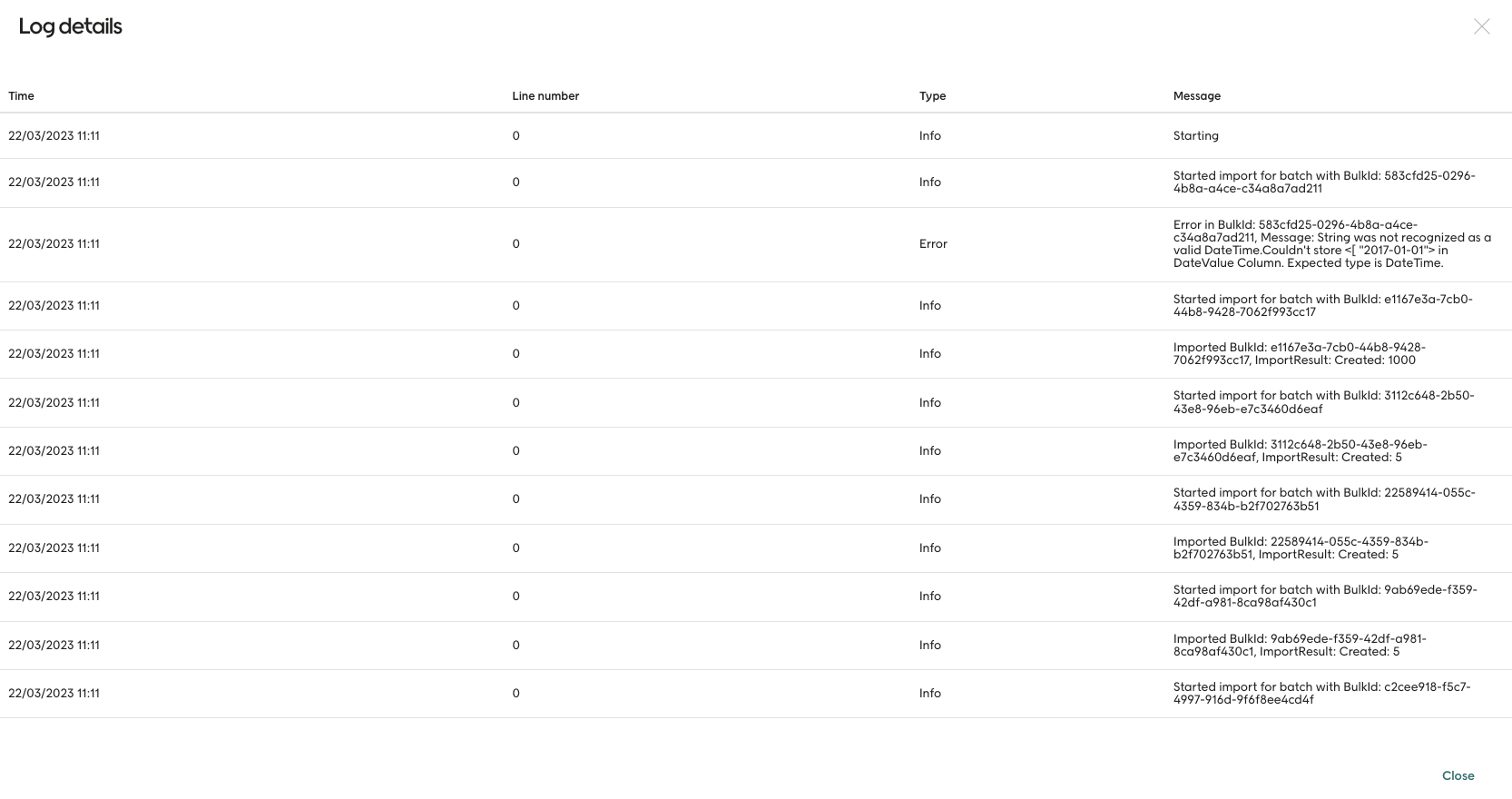
The progress of your batch will be recorded in the integration log.
The log is especially useful when finding out what happened if things go wrong.
Read about the integration log
Starting the job
Once you get back a status of “Received” your data is ready to be processed. This happens on a schedule, so it might not be completed right away. Keep polling the status endpoint to see when it’s done.
If a bulk update contains a contact of the wrong contactType, updating of that contact will be skipped and the job will continue.
If a bulk create contains a contact that already exists in Engage, the existing contact will be not be changed and the job will continue. In the same way, if a bulk update refers to a contact that does not exist, that row will be skipped and the job will continue.