In Engage you can set up back-in-stock automations. These are used to notify customers when a particular product they have indicated an interest in is available to buy again. The main steps of a back-in-stock flow in Engage are:
  • Create a back-in-stock subscription
  • Receive a stock level update
  • Start the back-in-stock automation
  • Send a back-in-stock email
This article will focus on the back-in-stock and stock-levels API endpoints.
https://mintcdn.com/voyado/-QD3xMpfEY3BtcMt/icons/help-center-link.png?fit=max&auto=format&n=-QD3xMpfEY3BtcMt&q=85&s=d9dbad90df6f1f0afa4f2062b8d9c460

Read about automations and email here.

Back-in-stock API endpoints

In order to receive back-in-stock notifications, a contact needs to have a back-in-stock subscription registered in Engage. This subscription connects an Engage contact to a specific item (by the SKU).
Any back-in-stock subscription created will be deleted as soon as it has triggered a back-in-stock automation for that contact. The subscription is then seen as “used”.

1 - Create a new subscription

A back-in-stock subscription is created using the following API endpoint:
POST /api/v3/inventory/backinstock/subscriptions
With the following kind of payload:
{
  "contactId": "f5774867-8358-111f-85a4-af1200eced95",
  "locale": "en-US",
  "sku": "AD_0397_V_685_006_66",
  "externalId": "12165253-34345"  
}
contactId
int
required
The subscriber’s Engage contact ID.
sku
int
required
The SKU of the item being subscribed to.
locale
int
required
Locale of the SKU and therefore which product feed to fetch product data from.
externalId
int
A reference to an entity in an external system, only required if the value is included in the stock level update.

A successful request gives a HTTPS 201 Created response.
Since the contactId is sent when creating a back-in-stock subscription, that contact needs to exist in Engage. If they don’t exist, you’ll need to create them. For example, when a user enters their email to request a back-in-stock message, and that email can’t be connected to any existing contact.When doing this, Voyado recommends using your default contact type and collecting the contact’s consent for future communication. This will allow you to stay in touch after the back-in-stock notification has been sent, and communicate with that contact outside of the back-in-stock scope.
https://mintcdn.com/voyado/-QD3xMpfEY3BtcMt/icons/developer-link.png?fit=max&auto=format&n=-QD3xMpfEY3BtcMt&q=85&s=92be9e7202a0fc63f959e3f367cc7e32

Read more about creating contacts and contact types

2 - Delete an existing subscription

A back-in-stock subscription is deleted like this:
DELETE /api/v3/inventory/backinstock/subscriptions/{subscriptionId}
subscriptionId
int
required
The unique ID of the back-in-stock subscription.
A successful deletion gives a HTTPS 204 No Content response.

3 - Get all subscriptions for a contact

You can fetch all back-in-stock subscriptions for a contact like this:
GET /api/v3/contacts/{contactId}/backinstock/subscriptions
contactId
GUID
required
The standard GUID identifying a contact in Engage.
A successful request returns a HTTPS 202 OK response and this kind of data:
{
    "data": [
        {
            "id": "cba5aba5-cf3c-40f5-a4db-b0d100bb2c7a",
            "contactId": "48fba7e7-e447-4d90-a9ca-a86e00b1d8f4",
            "sku": "AD_0743_V_395_001_31x65",
            "locale": "en-US",
            "externalId": "12165253-34345",
            "createdOn": "2023-12-07T12:21:28+01:00"
        },
        {
            "id": "bfca224c-de4c-4d61-903d-b0d100bb331c",
            "contactId": "48fba7e7-e447-4d90-a9ca-a86e00b1d8f4",
            "sku": "AD_0397_V_685_006_29",
            "locale": "en-US",
            "externalId": "12823253-89054",
            "createdOn": "2023-12-07T12:21:34+01:00"
        }
    ]
}

4 - Update one or several stock levels

This endpoint updates stock levels of one or more specific SKUs in Engage. This is then used to trigger the automations that will send back-in-stock communication to subscribed contacts. Stock level updates are done like this:
PUT /api/v3/inventory/stock-levels
With this kind of payload:
[
    {
        "quantity": 15,  
        "locale": "sv-SE",
        "sku": "AD_0397_V_685_006_29",
        "externalId": "12165253-34345"  
    },
    {
        "quantity": 10,  
        "locale": "en-US",
        "sku": "AD_0743_V_395_001_31x65",
        "externalId": "48165253-23345"  
    }
]
For Engage to trigger a back-in-stock email, all products (including out of stock products) must be present in the product feed that is connected to Engage. If a product is not in the feed, a BIS email cannot be sent for it.
quantity
int
required
Latest stock quantity of the SKU.
sku
string
required
The SKU of the item which has received a stock level change. This SKU has to exist in the product feed.
locale
string
Locale of the SKU and therefore which product feed to fetch product data from.
externalId
string
Reference to an entity in external system.
A successful request gives a HTTPS 202 Accepted response.
Engage should be notified whenever the stock level of the given SKU has changed, or when it is considered back in stock. This enables Engage to keep track of the entire inventory regardless of the stock level. A stock quantity threshold of what the client considers to be “back in stock” can be configured in the automation trigger.

locale and externalId in stock level updates

Although neither locale nor externalId are required for stock level updates, it’s strongly recommended to include at least one of these attributes when a stock level update is done. Which one you use depends on what your subscription look like. Consider the following situation. Five subscriptions are set up using these values (the externalId attribute is optional when setting up a subscription):
SubscriptionskulocaleexternalId
#1SKU-1sv-se
#2SKU-1pl-pl
#3SKU-1sv-seSE-SKU-1
#4SKU-1pl-plPL-SKU-1
#5SKU-2sv-se
Case 1: The retailer sends sku, quantity and locale when doing a stock level update. An event is then triggered if both the sku and locale in the request match one or more of the subscriptions. The event created will be enriched based on the value in locale.
  • Example: The retailer sends sku as “SKU-1” and locale as “sv-se”, triggering subscriptions #1 and #3.
Case 2: The retailer sends sku, quantity, externalId in a stock update. Now for an event to be triggered, sku and externalId have to match a subscription. The event will be enriched based on locale.
  • Example: The retailer sends sku as “SKU-1” and externalId as “SE-SKU-1”, triggering subscription #3.
Case 3: The retailer sends only sku and quantity in a stock update. All subscriptions containing that sku will now be triggered regardless of their externalId or locale value. The event will be enriched based on the locale.
  • Example: The retailer sends the sku as “SKU-1” which triggers subscriptions #1, #2, #3 and #4.

Triggering the back-in-stock automation

For Engage to trigger a back-in-stock email, all products (including out of stock products) must be present in the product feed that is connected to Engage. If a product is not in the feed, a BIS (back-in-stock) email cannot be sent for it. A stock level update sent to Engage triggers any back-in-stock automation triggers.
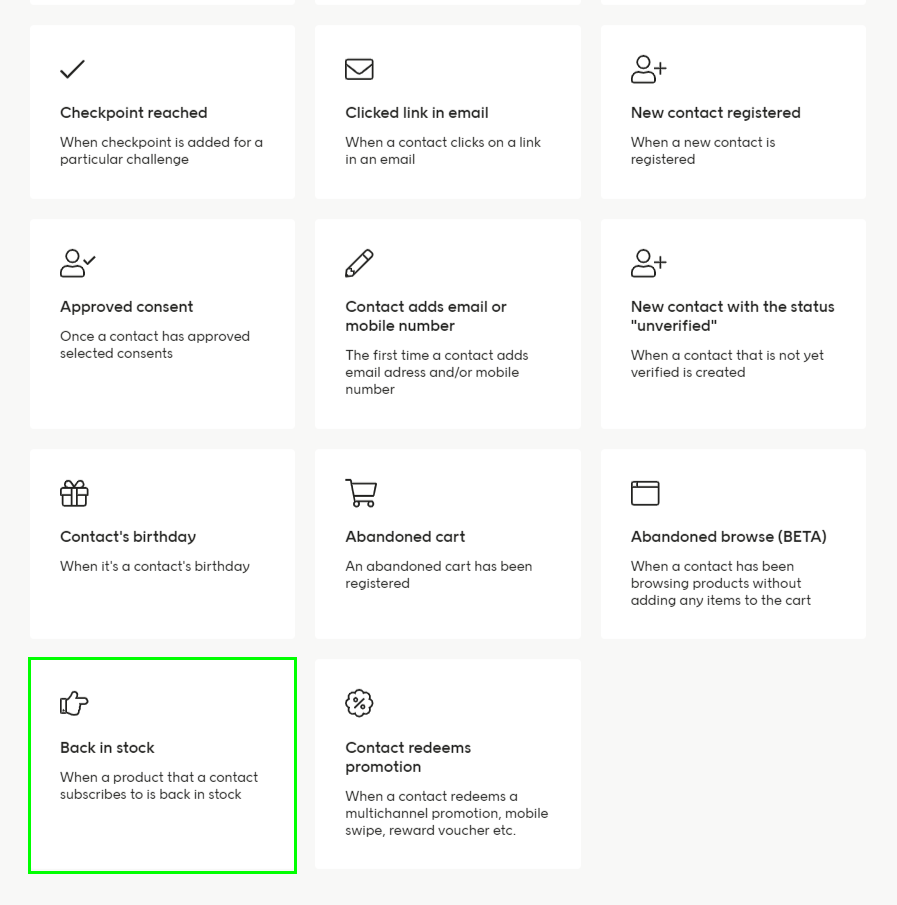
The automation trigger
The following conditions must be met for a back-in-stock automation for a subscription to proceed.
  1. The stock quantity must be higher than 0
  2. A product feed must be configured for the specified locale
  3. Product data must exist for the specified SKU
As well as these predefined conditions, you can also define custom conditions for your back-in-stock automation trigger based on:
  • Locale
  • Quantity
  • SKU
  • ExternalId
  • Product data
  • Subscription time
  • Purchase
  • Contact attributes
Once the automation has started (and passed all trigger conditions) that specific subscription will be deleted, regardless of whether the automation included communication to the subscriber or not. A value split for locale is also supported in back-in-stock automations.

Logging of back-in-stock

The integration log will show you which SKU has passed the predefined conditions in the automation, and the number of subscriptions that have been sent to the back-in-stock automation trigger.
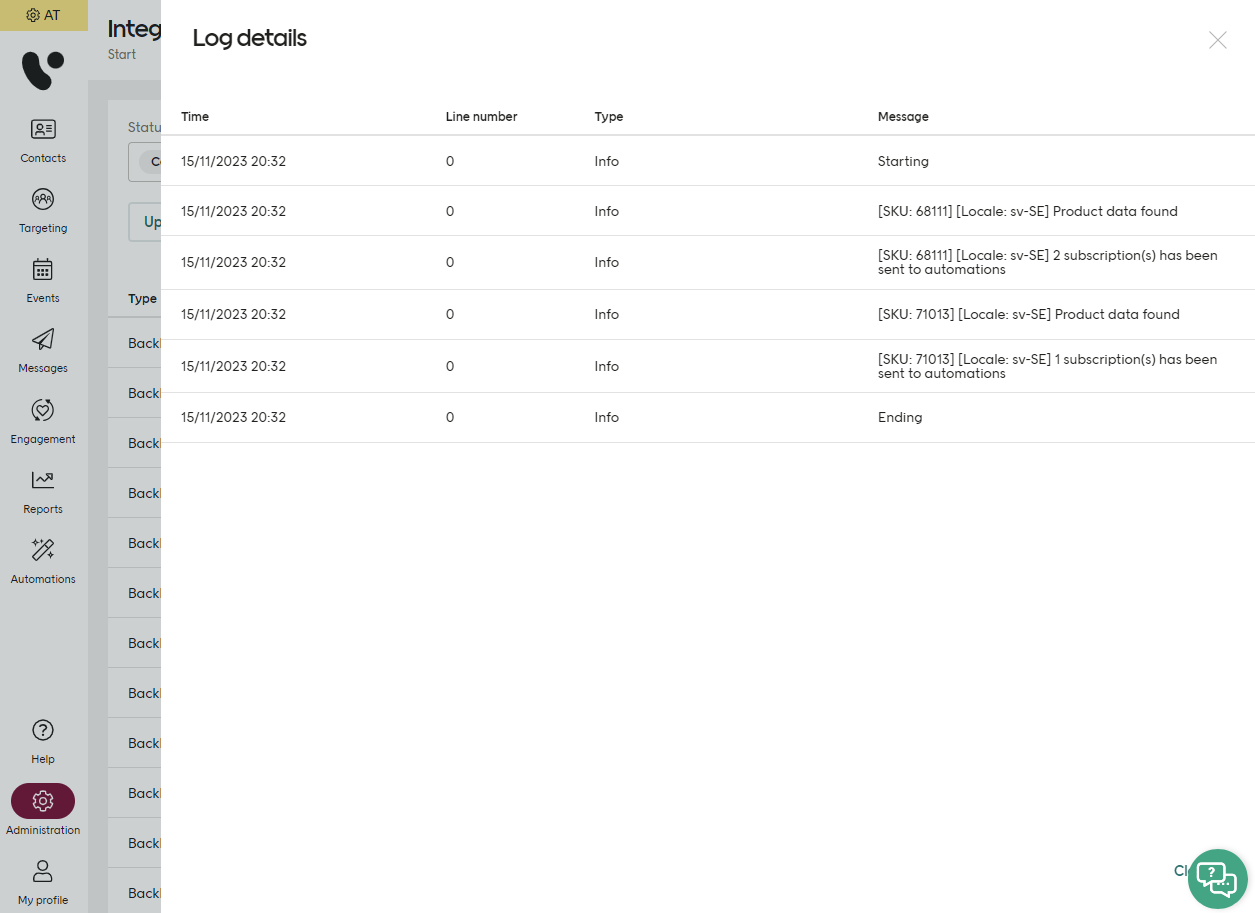
Back-in-stock logging