


- Created-in store: Where a contact was first added to Engage. Once added can’t be changed.
- Regular store: A contact’s “usual” store determined by RFM values. This can change.
Working with stores
Your active stores should be set up in Engage before contacts are created. Additionally, any new stores that open should also be added. This allows customers to be linked to the correct recruited-in store or regular store through the store ID in their purchase data. If a transaction is processed by Engage using a store ID that doesn’t exist, then Engage will create that store.Creating a store
Here is how to create a store in Engage:Navigate to the stores section in Engage
In Engage, go to Administration, then select Stores and Stores again.
Fill in store details
Fill in the fields. Required fields are “Store”, “Time zone” and “External ID”.The “Store” field is the display name for this store as it will be shown in Engage. It should be unique to reduce confusion but doesn’t have to be.The “External ID” is the one on the receipt. It is usually found in your ERP system. This is the store’s unique ID in Engage and can’t be the same as another store in Engage.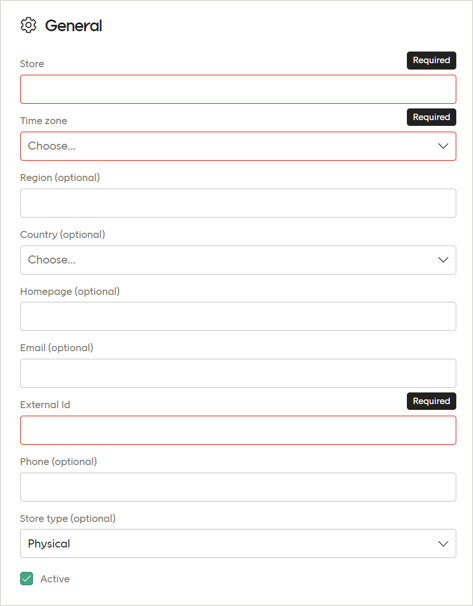
Changing a store’s External ID
A store’s External ID is used to connect imported receipts with that store. If you change a store’s External ID in Engage, but are still sending receipts using the old External ID, Engage will then create a new store using that old External ID. That is not good. To correctly change a store’s External ID, the customer needs to stop sending receipts using the old External ID, then change the External ID value in Engage, and then begin sending receipts using the store’s new External ID. Doing it this way avoids any issues.Sending email as a specific store
When designing an e-mail send-out, there’s a way to decide which product feed will be used to populate it. To get this working, there’s a few things to do in the Engage back-end and front-end.Configuration in Engage
Your Voyado team needs to make adjustments to the Engage back-end. Contact them for this step.
Edit the store
When that’s done, go to the Engage frontend and select Administation then Stores and then Stores again. You’ll see a list of all your stores. Selecting one takes you to Edit store. Scroll down to the Spare fields section. Locate the “Locale” field.This is where you will enter the same locale as the one specified in whatever product feed you want to use for this store.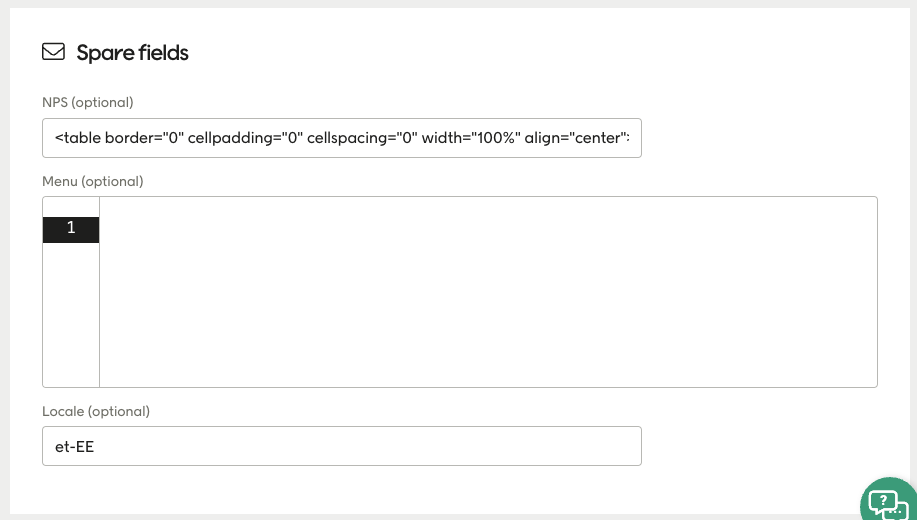
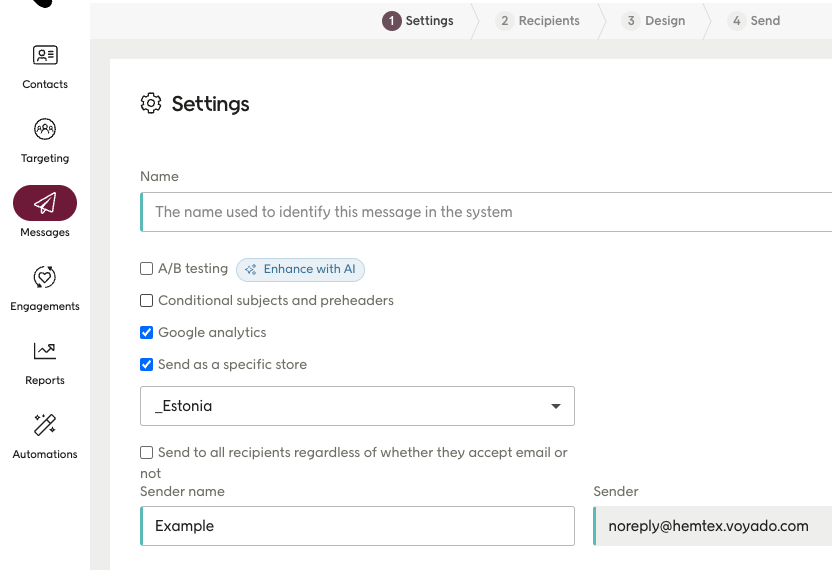
API endpoints for stores
Here are the endpoints used for working with stores.Get all stores
Use this endpoint to fetch all your stores.includeInactive as “true” as shown above to include inactive stores in the response. Leave it out if you don’t need it (the default is “false”).
The response will have this structure:
Create a store
To create a store, use this endpoint with the following payload structure:Payload structure
name and externalId. The POST request will return a 400 error if these are missing from the payload.
While it’s not required, you should also specify timeZone since the Engage UI requires it and you’ll probably be accessing the store through the UI at some point. The fields type (either “ecom” or “retail”) as well as country (“SE”, “FI”, etc) are also recommendeded to improve reporting and segmentation.