As a Voyado customer, you might want to test functions and features before going live. You can then request access to your Staging environment.
About the staging environment
Staging is where new features in Engage are tested, bugs are ironed out and flows are perfected. It’s primarily a testing environment for Voyado’s development teams, but if you as a customer want to use it, then you can. However, keep a few things in mind:
-
Stability: Since Staging is where we test our next release and deploy our new code, it can go down without warning. So don’t count on it being up and running at any one time.
-
Performance: Staging, being a test environment, is not optimized for performance and could be a lot slower than your live environment. It is primarily a place for testing functionality and patterns, not volume and speed. Do not import more than 100,000 contacts.
-
Data: You can import your data into Staging. But beware that you cannot then transfer this data from Staging into your live environment. It will need to be imported again.
-
Privacy: When using Staging we recommend that you use dummy contacts and not import real contact data. Any real contact data in Staging could create GDPR issues, so when using Staging be sure to remove all such sensitive data when you are done.
-
Features: Features in Staging might not always match those in your live environment.
-
Allowlist: For security reasons, messages can only be sent to customers through the Staging environment if the email address (or phone number) beng used has been added to your allowlist. Your project team at Voyado must do this for you. See more about the allow list below.
Email and SMS allow lists
The staging environment has restrictions concerning how emails and SMS are sent out. To allow an email address or mobile phone number to receive communication from staging (whether service / order communication or otherwise) it must be added to the allowlist.
The allowlist is only relevant for the staging (test) environment.
Finding the allowlist
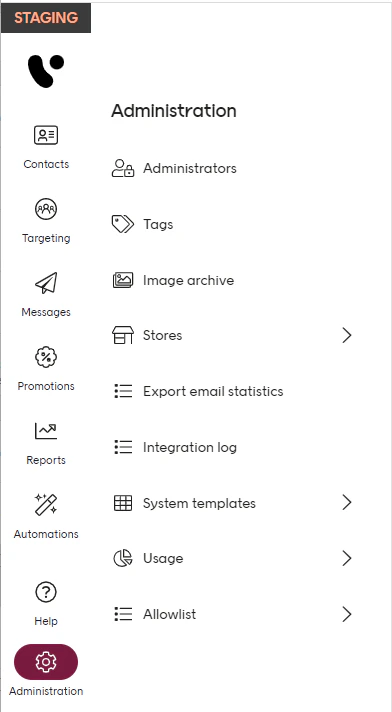
The allowlist can be found on the side menu under Administration.
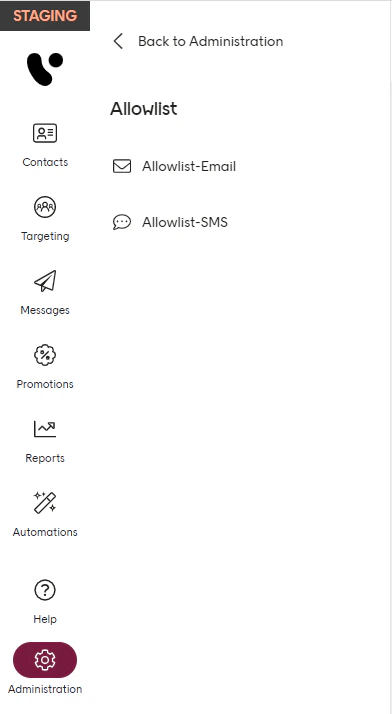
From here you can open the Email allowlist or the SMS allowlist.
The email allowlist
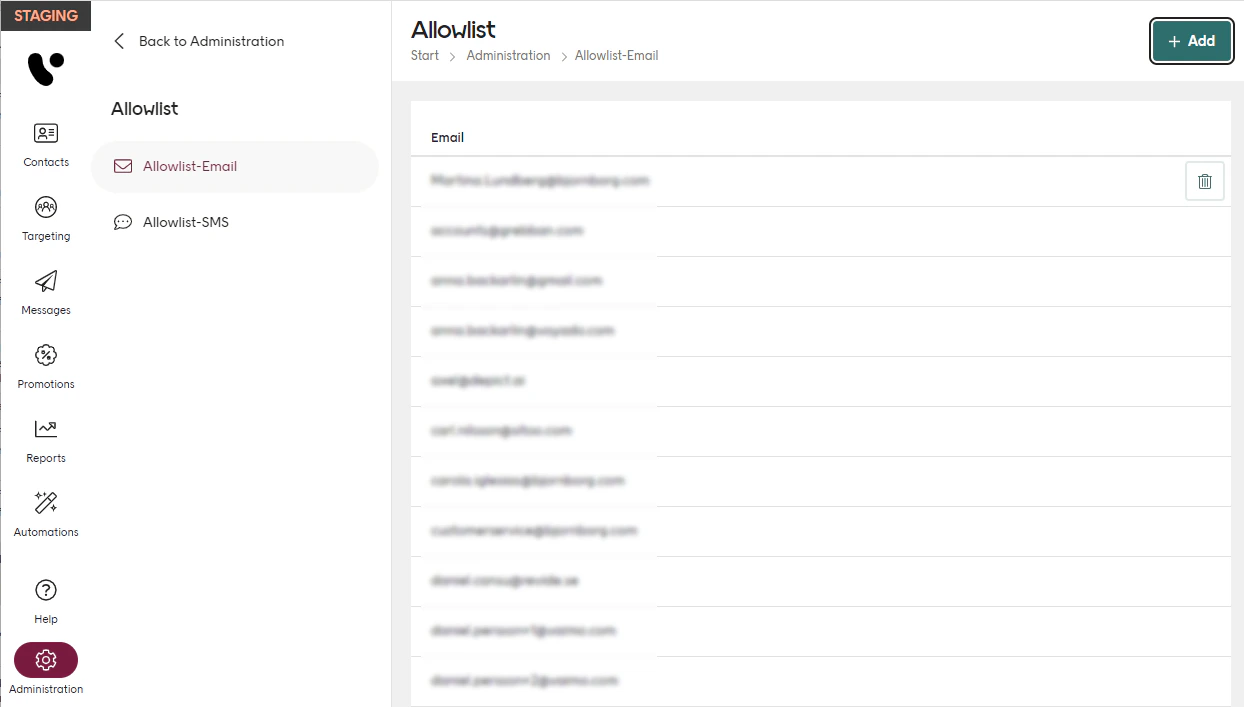
Opening the email allowlist shows the list of email addresses that have been added.
Rolling over an email brings up the Delete icon you can use to remove that address from the list.
Select the Add button to add new email addresses.
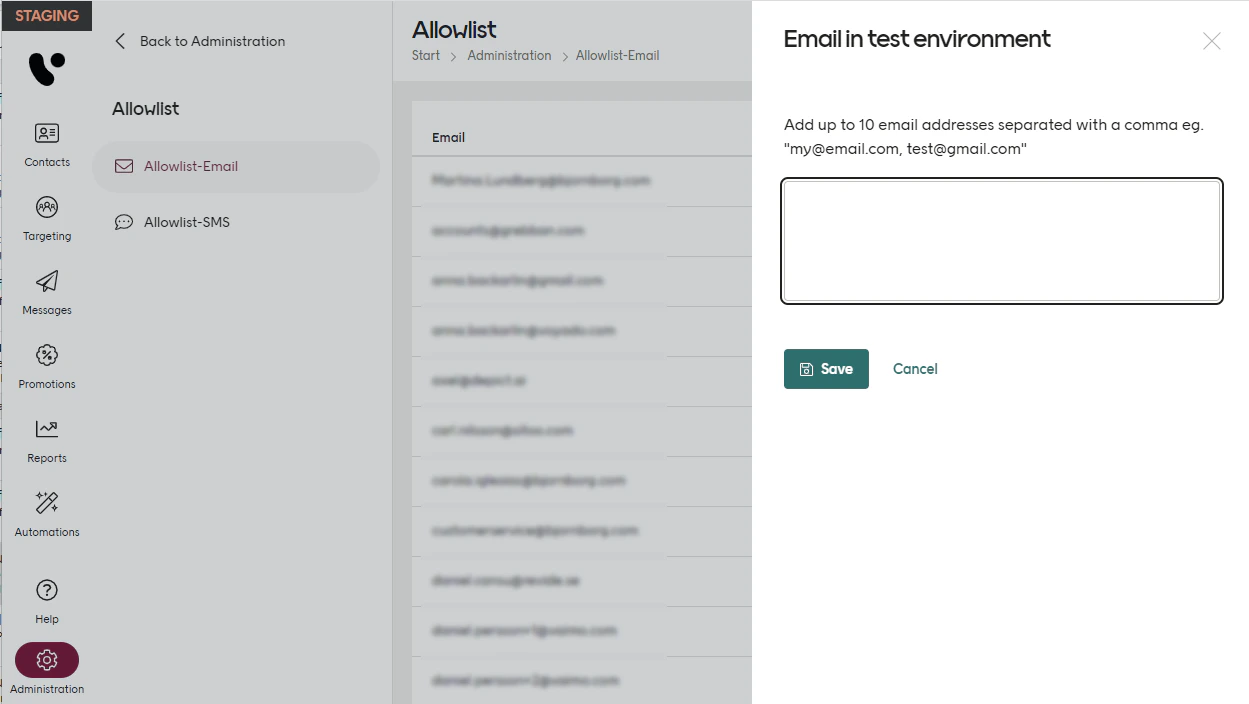
Now add the email addresses according to the instructions.
The SMS allowlist
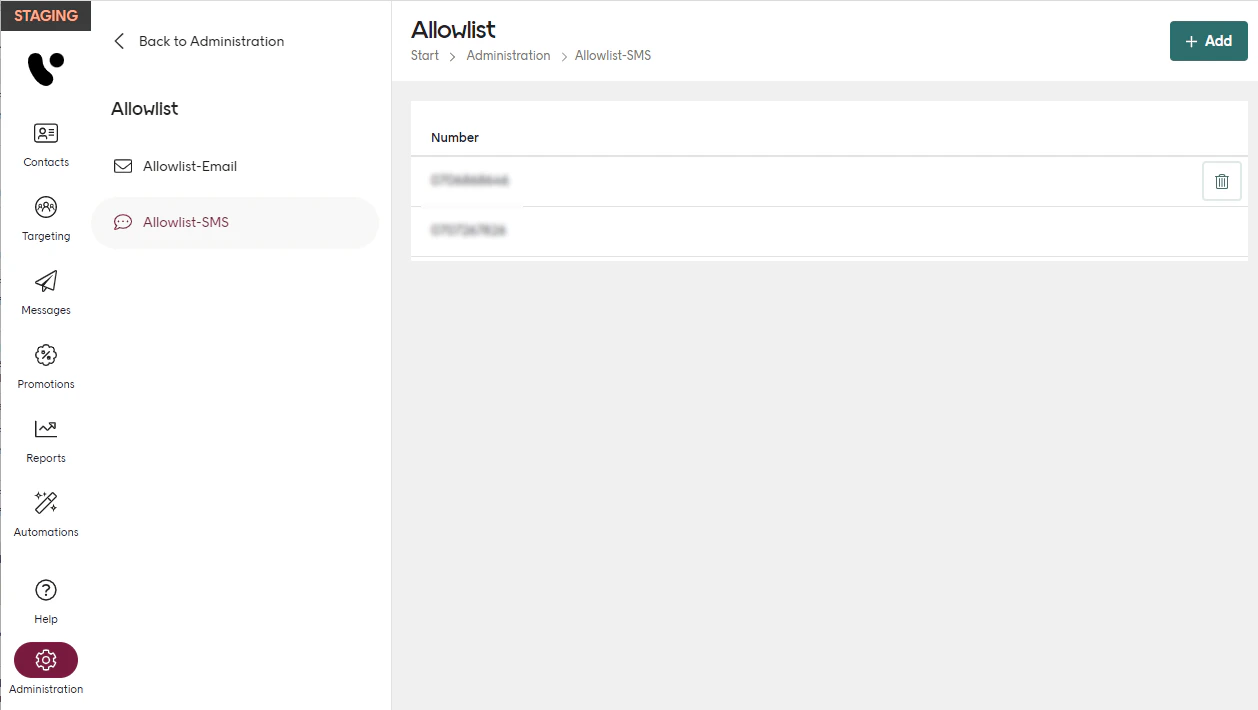
Opening the SMS allowlist shows the list of mobile phone numbers that have been added.
Rolling over a mobile number brings up the Delete icon you can use to remove that number from the list.
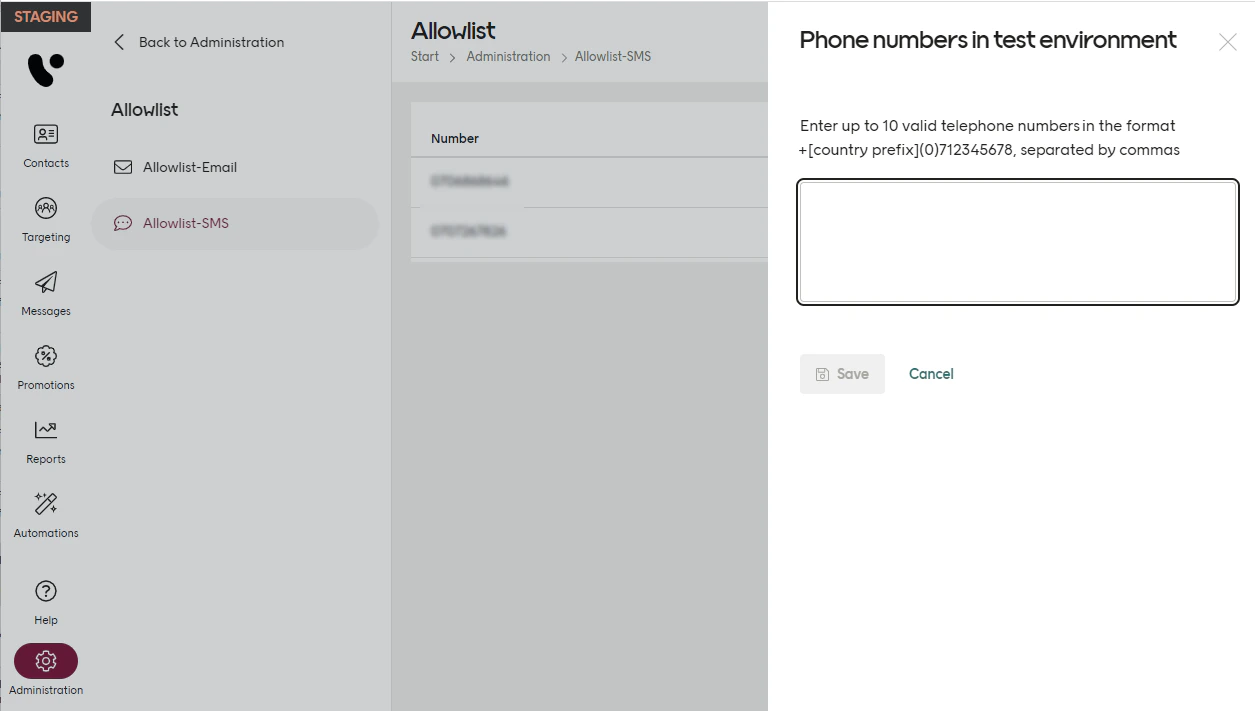
Select the Add button to add new mobile numbers.
Now add the numbers according to the instructions.